
Switch Audience
Getting Ubuntu onto a USB Drive
Your mini computer arrived in a box with nothing on it. Before it can become a dev server it needs an operating system. Before it can get an operating system you need to get the installer onto a USB drive.
This is a five minute job that sounds more technical than it is. The process is called "flashing" — you're writing the Ubuntu installer onto a USB drive in a way that makes it bootable, meaning the computer can start up from it. You are not doing anything exotic. This is exactly what every systems administrator on the planet does every time they set up a new machine. The tools make it simple.
One thing you will need before you start: a USB drive of at least 4GB. The Ubuntu installer image is 3.2GB, so anything smaller won't work. Drives this size are essentially the smallest thing sold anywhere — you probably have one in a junk drawer. Just make sure it doesn't have anything on it you need. The flashing process erases it completely and does not ask twice.
Get the Ubuntu image
Go to ubuntu.com and download the Ubuntu 24.04 LTS Server installer. Save it somewhere you can find it. It will arrive as a file ending in .iso — that's the disk image.
Try Balena Etcher first
Etcher is the friendlier tool. Go to etcher.balena.io, download it, and launch it — no installation required, it runs directly. The interface has three steps: choose your ISO file, choose your USB drive, click Flash. If it works, you're done.
If you get an error — something like "is not a function" — don't troubleshoot it. Etcher has a known bug with certain versions. Just move on to Rufus.
If Etcher fails, use Rufus
Go to rufus.ie. Be careful on this page — there are large buttons that look like download links but are actually advertisements. Look for the plain text link to the .exe file and download that.
Rufus is also a single file that runs without installing. Open it and make these four selections:
- Partition scheme: GPT
- Target system: UEFI (non CSM)
- File system: Large FAT32
- Write mode: ISO Image mode (not DD)
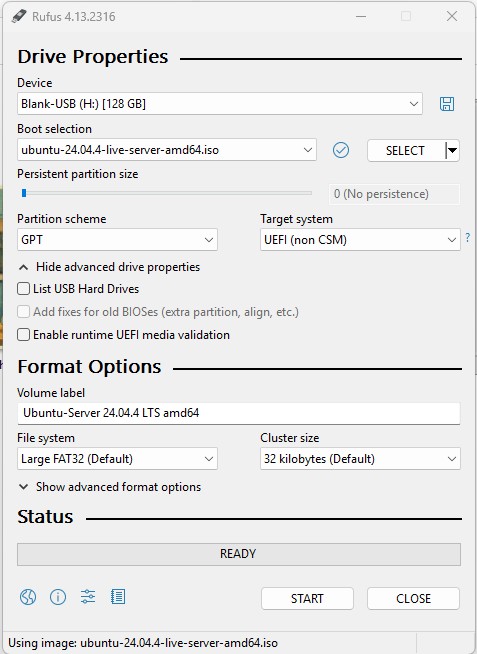
Select your ISO file, select your USB drive, and click Start. Rufus will warn you that the drive will be erased — confirm and let it run.
When it finishes, the progress bar turns green and says READY. That's it. There is no fanfare, no congratulations, no "you're done" message. Rufus just quietly finishes and waits in case you want to flash another drive. You don't. Click Close. The drive is ready.
SUMMARY:
Flash the Ubuntu ISO to a USB drive using Balena Etcher — and if Etcher gives you trouble, Rufus gets the job done without complaint.