
Switch Audience
Connecting to Your Dev Box with Bitvise

The monitor is going in the closet. You knew this was coming.
From this point forward you will never sit in front of your dev box again. Everything happens over the network from your workstation — which means you need a way to open a terminal on a machine that is sitting on a shelf somewhere with no screen attached to it. That is what SSH is for.
SSH — Secure Shell — is how every systems administrator connects to every server everywhere. It opens an encrypted connection between your workstation and your server and gives you a command line as if you were sitting right in front of it. The fact that the server is in the next room, the next building, or on a DigitalOcean droplet in a data center in New York makes no difference. The terminal prompt looks the same either way.
Bitvise is an SSH client for Windows. It cannot make your morning coffee but it can do just about everything else, and it does it better than most tools in this space. The good news is that for now you only need two of its features. The rest will be there when you need them.
The feature that will surprise you is the SFTP window. SFTP is a protocol for transferring files over an SSH connection — but Bitvise presents it as something that looks exactly like Windows Explorer. One side is your server. One side is your local machine. Moving files between them is drag and drop. Nobody warned you it would be this easy.
Download and install Bitvise
Go to bitvise.com/download-area and download the Bitvise SSH Client — the client, not the server. It installs like any normal Windows application. You will need software installation privileges on your workstation — in a shared office environment that may mean a quick conversation with whoever manages your computers.
Create a connection profile
Open Bitvise. On the left sidebar click the New Profile icon. You will be asked to save the profile before you configure it — name it exactly what you named your server. Not "dev box." Not "server." The same name. When you have ten servers you will be very glad someone told you to do this. Save it somewhere intentional — a folder called Bitvise Profiles, a server management folder, anywhere that is not your desktop.
Configure the connection
Fill in three fields:
- Host — the IP address you wrote down from the server. The one you found with the `ip address` command.
- Username — the username you created during the install.
- Initial method — select Password.
Whether you store your password in Bitvise or type it every time is a security decision only you can make. Storing it encrypted is convenient. Not storing it means one extra step every time you connect. Either is reasonable for a local dev box.
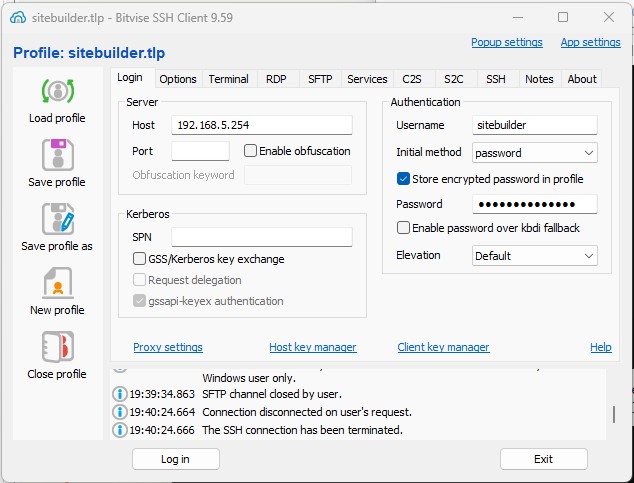
Click Login.
Accept the certificate
A warning box will appear telling you the server's identity is unknown. This is not an alarm — this is the server introducing itself for the first time. Bitvise is asking you to confirm that yes, this is the machine you meant to connect to. Accept and save the host key. Bitvise will remember it and won't ask again.
Save the profile
Once you are connected and can see the terminal prompt, save the profile using the Save Profile icon on the left sidebar. Save it after connecting — not before — because now you know it works.
The two things you need
Look at the left sidebar. There are six icons. For now you need two:
- New Terminal Console — opens a command line on your server. You can open several at once, and at some point you will have three or four running simultaneously and feel entirely competent about it.
- New SFTP Window — opens a file browser that connects your server and your local machine side by side. Drag and drop to transfer files in either direction.
Everything else on that sidebar is there when you need it. You won't need it today.
SUMMARY:
Bitvise gives you a terminal window and a file browser — everything you need to run a server you never have to sit in front of again.